Snap commands
2D snap | ||
| CaptureSnap2dToggle | Turns 2D snap mode on or off. |
| CaptureSnapNextCandidate | Moves to the next candidate without moving the cursor. |
Snap to a plane | ||
| CaptureSnapOnPolygonOnce | Enables snap on polygon for one point only. |
| CaptureSnapOnPolygon | Enables snap on polygon for the duration of one command. |
| CaptureSnapOnPolygonPersistent | Enables snap on polygon until it is disabled. |
| CaptureSnapOnPointCloudPlane | Snaps the captured point to the estimated plane of the point cloud. |
Z lock | ||
| CaptureSnapZOnce | Locks Z for one point only. |
| CaptureSnapZ | Locks Z for the duration of one command. |
| CaptureSnapZPersistent | Locks Z until it is disabled. |


The 3D snaps (end, midpoint, point, near…) are those of Rhinoceros: refer to its help. rhinoCapture only adds the snaps that do not exist in Rhinoceros: 2D snap (XY on an entity, Z from the 3D cursor), snap on a polygon (Z is computed in the plane of the polygon) and Z lock.
| Command Name | Icon | Menu Path |
|---|---|---|
| CaptureSnap2dToggle | RhinoCapture > Snap > 2D snap |

Turns 2D snap mode on or off. When it is on, the captured point takes the X and Y coordinates of the snapped entity, but keeps the Z of the 3D cursor; when it is off, the Rhinoceros snaps apply in 3D. It is a toggle command: each run reverses the state, and the command line confirms the resulting state — 'Snap 2D' is now engaged or 'Snap 2D' is now disengaged.
| Command Name | Icon | Menu Path |
|---|---|---|
| CaptureSnapNextCandidate | RhinoCapture > Snap > Next candidate |

When several entities are snap candidates within the snap radius, moves to the next candidate without moving the cursor. Transparent command: you can run it during another command, just before capturing a new point.
Snap to a plane |
One constraint, two sources, three lifespans
Four commands define the same plane constraint: once the plane is known, the Z of the clicked points is computed in that plane, whatever the position of the 3D cursor. They differ in the source of the plane and in the lifespan of the constraint.
The source of the plane
- an existing polygon (closed curve), which the command asks you to select: CaptureSnapOnPolygonOnce, CaptureSnapOnPolygon, CaptureSnapOnPolygonPersistent ;
- the point cloud, in which the plane is estimated around the cursor: CaptureSnapOnPointCloudPlane.
The lifespan
- the next point only: CaptureSnapOnPolygonOnce, or option ConstraintLifespan=OnePoint
- all points of the current command: CaptureSnapOnPolygonPersistent, or option ConstraintLifespan=OneCoommand
- all points, command after command, until removed: CaptureSnapOnPolygonPersistent, or option ConstraintLifespan=Persistent
For the polygon, the lifespan is carried by the command name; for the point cloud, by the ConstraintLifespan option of CaptureSnapOnPointCloudPlane.
All four commands are transparent (usable during a capture) and behave like switches:
no active constraint: the command obtains the plane (polygon selection, or estimation in the point cloud), then sets the constraint with its lifespan;
active constraint with the same lifespan: the command removes it ;
active constraint with a different lifespan: the command changes the lifespan, without asking for the plane again.

When the constraint was set by a stereo plotting command (dormers, terrace, vertices…), it is locked: all four commands are refused with the message “plotter is locked on polygon”
| Command Name | Icon | Menu Path |
|---|---|---|
| CaptureSnapOnPolygonOnce | RhinoCapture > Snap > On polygon > Once |

Enables snap on polygon for one point only: once the polygon is selected, the Z of the next point is computed in its plane, then the constraint disappears.
Use case: place an isolated point on a roof plane (dormer foot, terrace corner) in the middle of a capture that continues elsewhere. This is the variant to assign to a 3D mouse button.

| Command Name | Icon | Menu Path |
|---|---|---|
| CaptureSnapOnPolygon | RhinoCapture > Snap > On polygon > During command |

RhinoCapture\Snap\On polygon\During command
Enables snap on polygon for the duration of the current command: once the polygon is selected, the Z of all points clicked until the end of the command is computed in its plane. The constraint is released automatically at the end of the command.
Use case: draw an entire polyline on a roof plane (chimney, cutout, gable dormer) without having to disable the snap afterwards.
A second call removes the constraint; calling one of the other two commands changes its lifespan without asking for the polygon again.

| Command Name | Icon | Menu Path |
|---|---|---|
| CaptureSnapOnPolygonPersistent | RhinoCapture > Snap > On polygon > Persistent |

RhinoCapture\Snap\On polygon\Persistent
Enables snap on polygon until it is disabled: once the polygon is selected, the Z of all clicked points, command after command, is computed in its plane.
Use case: chain several objects on the same roof plane (several dormers, several openings) without reselecting the plane each time.
| Command Name | Icon | Menu Path |
|---|---|---|
| CaptureSnapOnPointCloudPlane | RhinoCapture > Snap > On point cloud plane |

Sets a plane constraint from the point cloud: the plane is estimated from the cloud points around the cursor, and the points clicked afterwards have their Z computed in that plane.
The estimation is done in two passes: a first plane is computed from all points in the disk, then recomputed after discarding those that are farther from it than PlaneTolerance. The resulting plane is therefore not skewed by a verge, a ridge or a chimney entering the disk, as long as they do not occupy most of it.
Move the cursor over the surface to follow. The cloud points taken into account are displayed with a color that reflects their distance to the estimated plane, from green (on the plane) to red (at the tolerance or beyond), through the intermediate hues. A uniformly green disk indicates a reliable plane; warm hues appear where the disk spills over a verge, a ridge or an object sitting on the roof.
Click the point: the plane is kept and the constraint set, for the lifespan defined by ConstraintLifespan.
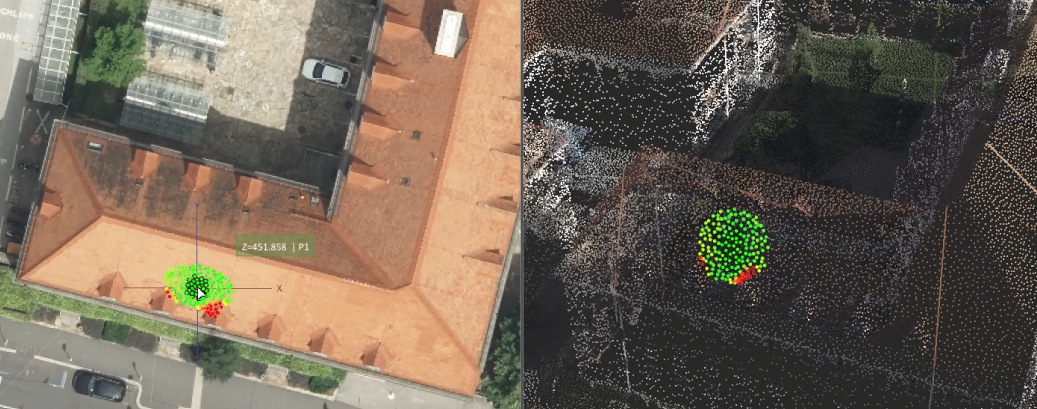
The options are:
SearchRadius
Radius, in meters, of the disk of points around the cursor from which the plane is estimated. Reduce it to follow a small roof plane; increase it to smooth a noisy point cloud.
PlaneTolerance
Distance, in meters, between a cloud point and the estimated plane beyond which the point is discarded from the final computation. It is also the color scale of the preview: the hue of each point is interpolated between green, for a zero distance, and red, for a distance equal to or greater than the tolerance; red points are those ignored by the second pass.
ConstraintLifespan
Lifespan of the constraint: OnePoint (the next point only), OneCommand (until the end of the current command) or Persistent (until disabled). See One constraint, two sources, three lifespans — the toggle rules are the same.
Z lock |
One constraint, three lifespans
The three commands CaptureSnapZOnce, CaptureSnapZ and CaptureSnapZPersistent set the same constraint: after a clicked point, of which only the Z is kept, the points captured afterwards take that Z whatever the position of the 3D cursor.
You thus give a point the X and Y coordinates of one position and the elevation of another. They differ only in the lifespan of the constraint:
CaptureSnapZOnce — : the next point only;
CaptureSnapZ — : all points of the current command;
CaptureSnapZPersistent — : all points, command after command, until removed.
| Command Name | Icon | Menu Path |
|---|---|---|
| CaptureSnapZOnce | RhinoCapture > Snap > Z > Once |

Locks Z for the next point only. Use case: pick up the eave height of the neighboring building for a single point, in the middle of a capture that continues at other elevations. This is the variant to assign to a 3D mouse button.

| Command Name | Icon | Menu Path |
|---|---|---|
| CaptureSnapZ | RhinoCapture > Snap > Z > During command |

RhinoCapture\Snap\Z\During command
Locks Z for the duration of the current command; the constraint is released at the end of the command. Use case: draw a whole terrace or parapet outline at an elevation taken elsewhere
| Command Name | Icon | Menu Path |
|---|---|---|
| CaptureSnapZPersistent | RhinoCapture > Snap > Z > Persistent |

Locks Z until it is disabled. Use case: chain several objects at the same elevation (a series of eaves along a row of facades).
“Constraints” display
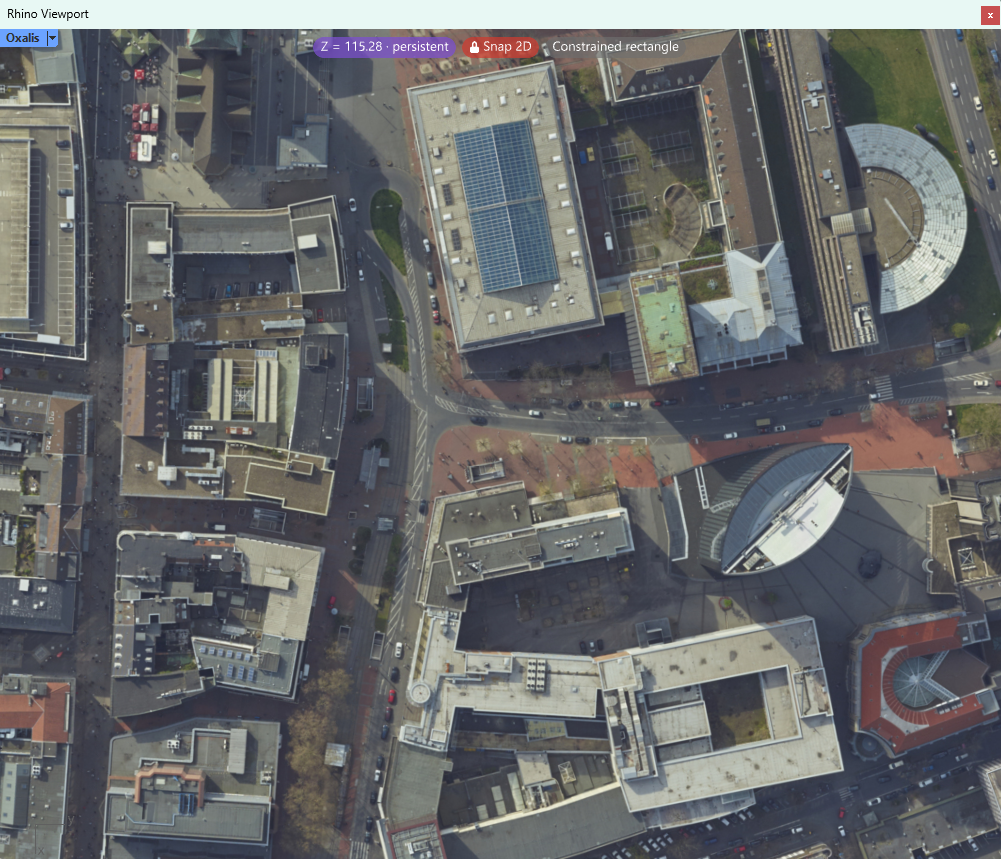
When a constraint or snap is engaged, RhinoCapture displays it as a badge at the top of the active view. A badge appears for each current constraint and disappears as soon as the constraint is released; when nothing is engaged, no badge is displayed.
The color of the badge indicates the type of constraint. For the plane, Z and Snap 2D, these are the colors of the magnets in the snap icons described above.
Badge
Meaning
Plane · persistent
Plane constraint: polygon or point cloud plane
Z = 12.35 · 1 point
Z constraint; the badge shows the elevation kept
Vertical · 1 command
Vertical constraint
Snap 2D
2D snap engaged
Constrained rectangle
Setting: rectangles are constrained by the azimuth
After the type, the badge shows the lifespan of the constraint: 1 point (it is released after the point is captured), 1 command (it lasts until the end of the current command) or persistent (it stays engaged until you release it).
A padlock before the text indicates a constraint imposed by the current command: the command, not you, engaged it, for example a vertical drawing command such as CaptureDrawPolylineVertical.
Without a padlock, the constraint was engaged by you.