
Edit and measure commands
Edit | ||
| CaptureEditCopy | Copies one or more objects |
| CaptureEditMoveObject | Moves one or more objects |
| CaptureEditRotate | Rotates one or more objects |
| CaptureEditVertexMove | Moves a vertex of a curve or polygon |
| CaptureEditVertexInsert | Inserts a vertex into a curve or polygon |
| CaptureEditConvertCurvesToPolylines | Converts arcs, circles or NURBS curves to polylines |
| CaptureEditPolygonVerifyCoplanarity | Checks the flatness of one or more polygons |
| CaptureEditIntersect3d | Computes the 3D intersection of two lines |
| CaptureEditExtendLine | Extends a line or a polyline segment |
| CaptureEditPolygonDivide | Splits a polygon along a polyline |
Measure | ||
| CaptureMeasure2dDistance | Measures the 2D distance |
| CaptureMeasure3dDistance | Measures the 3D distance |
| CaptureMeasureHeight | Measures a height difference (change in Z) |


The edit commands act on existing objects: copy, move, rotate, vertices, conversion, splitting, checking.
The measure commands display a distance on the command line without creating an object.
| Command Name | Icon | Menu Path |
|---|---|---|
| CaptureEditCopy | RhinoCapture > Edit > Copy |

Copies one or more objects.
- Select the objects to copy.
- Click the reference point (start point of the copy).
- Click the position of the copy (end point).
| Command Name | Icon | Menu Path |
|---|---|---|
| CaptureEditMoveObject | RhinoCapture > Edit > Move |

Moves one or more objects.
- Select the objects to move.
- Click the reference point.
- Click the destination position.
| Command Name | Icon | Menu Path |
|---|---|---|
| CaptureEditRotate | RhinoCapture > Edit > Rotate |

Rotates one or more objects.
- Select the objects to rotate.
- Click the first and second points that define the rotation axis.
- Click a point defining the new orientation, or type an angle value.
| Command Name | Icon | Menu Path |
|---|---|---|
| CaptureEditVertexMove | RhinoCapture > Edit > Move vertex |

Moves a vertex of a curve or polygon.
- Select the curve the vertex belongs to.
- Click near the vertex to move.
- Click the new position of the vertex.
| Command Name | Icon | Menu Path |
|---|---|---|
| CaptureEditVertexInsert | RhinoCapture > Edit > Insert vertex |

Inserts a vertex into a curve or polygon.
- Select the curve in which to insert a vertex.
- Click near the vertex adjacent to the new vertex.
- Click the position of the new vertex.
| Command Name | Icon | Menu Path |
|---|---|---|
| CaptureEditConvertCurvesToPolylines | RhinoCapture > Edit > Curves to polylines |

Converts arcs, circles or NURBS curves to open or closed polylines.
- Select the curve.
- Adjust the Tesselation value, then confirm with [Enter].
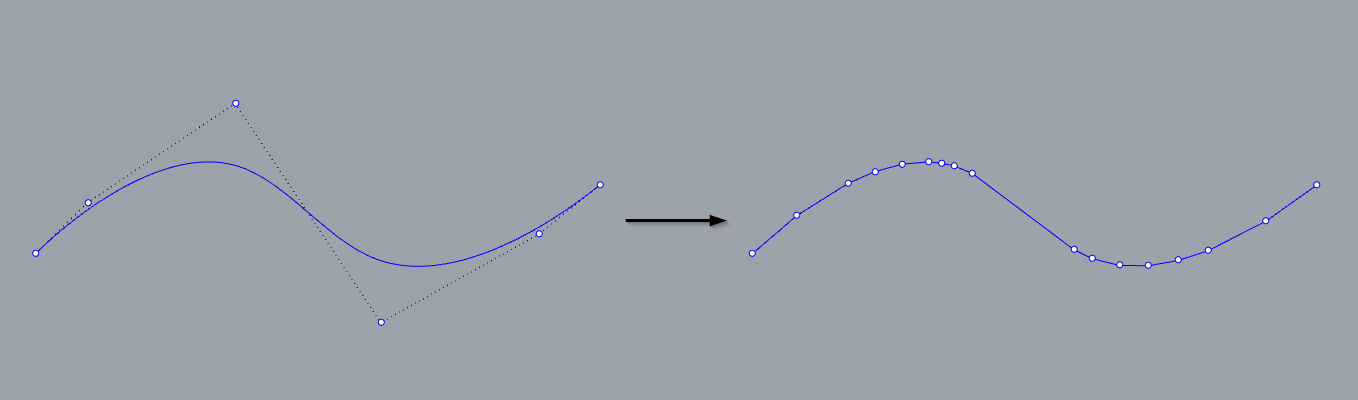
Converting a curve to a polyline
| Command Name | Icon | Menu Path |
|---|---|---|
| CaptureEditPolygonVerifyCoplanarity | RhinoCapture > Edit > Verify coplanarity |

Checks the flatness of one or more polygons, within a given tolerance.
- Select closed curves.
- Set the CoplanarityTolerance value, then confirm with [Enter].
Polygons that are not planar within the chosen tolerance remain selected, and a message on the command line reports it.
| Command Name | Icon | Menu Path |
|---|---|---|
| CaptureEditIntersect3d | RhinoCapture > Edit > 3D intersection |

Computes the 3D intersection of two lines.
- Select the first line.
- Select the second line.
| Command Name | Icon | Menu Path |
|---|---|---|
| CaptureEditExtendLine | RhinoCapture > Edit > Extend line |

Extends a line or a polyline segment, keeping its direction.
- Select the segment near its start or end.
- Click the extension point.
| Command Name | Icon | Menu Path |
|---|---|---|
| CaptureEditPolygonDivide | RhinoCapture > Edit > Divide polygon |

Splits a polygon along a polyline or another polygon.
- Select the polygon to split.
- Select the cutting element.
| Command Name | Icon | Menu Path |
|---|---|---|
| CaptureMeasure2dDistance | RhinoCapture > Measure > 2D distance |

Measures the 2D distance (in plan) between two points.
| Command Name | Icon | Menu Path |
|---|---|---|
| CaptureMeasure3dDistance | RhinoCapture > Measure > 3D distance |

Measures the actual 3D distance between two points, unlike CaptureMeasure2dDistance.
| Command Name | Icon | Menu Path |
|---|---|---|
| CaptureMeasureHeight | RhinoCapture > Measure > Height difference |

Measures the height difference (change in Z) between two points that do not necessarily have the same XY coordinates.