
For a PluraView-type monitor (SchneiderDigital)
Configuring NVIDIA
In the NVIDIA Control Panel, go to the section System\Displays
- In the Display settings section, click the edit button at the top right
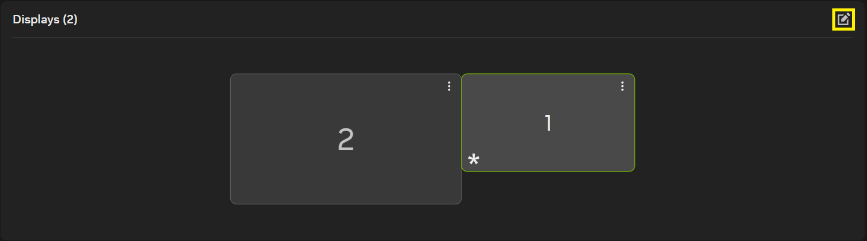
- Check that the 2 screens making up the PluraView are selected:
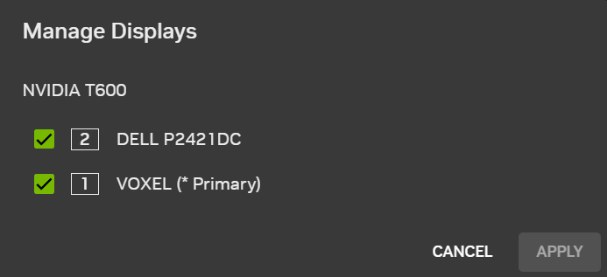
- Make sure that the main display, the one marked with a star, is the bottom screen.
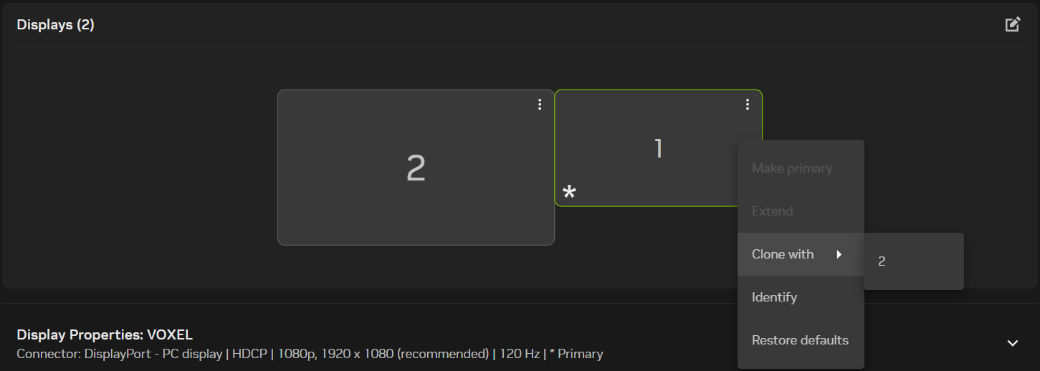
💡 You can change and identify the main display by right-clicking the display
- Right-click your screen marked with a star “ *”, choose
Clone with 2
- Go to the section 3D Settings\Manage 3D settings.
Check the value of the 2 parameters below:
⚠️ Stereo - Enable =
Stereo - Display mode =
OnStereo - Display mode =
Mode cloneConfiguring Windows
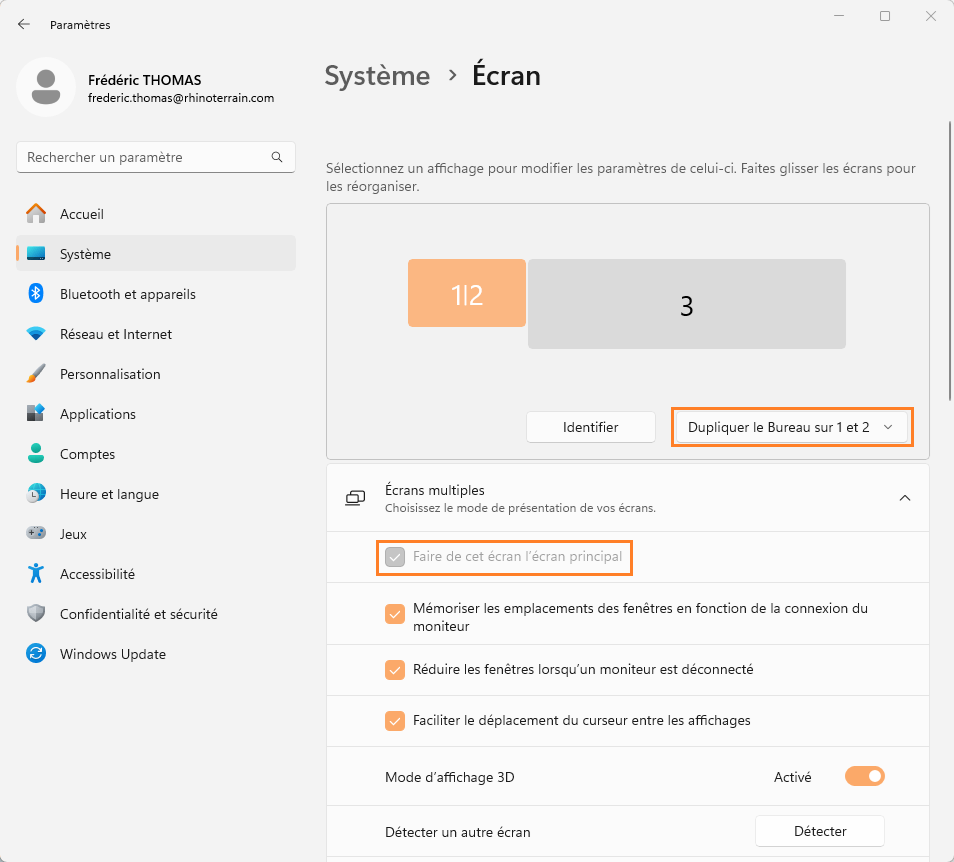
Display 3 must be the main display
Displays 1 and 2 making up the PluraView must be duplicated:
Configuring Rhinoceros®
Open the Rhino “Options”: menu Tools\Options…
- In the Advanced options section, the value of the parameter Rhino.Options.OpenGL.QuadBuffering must be
True
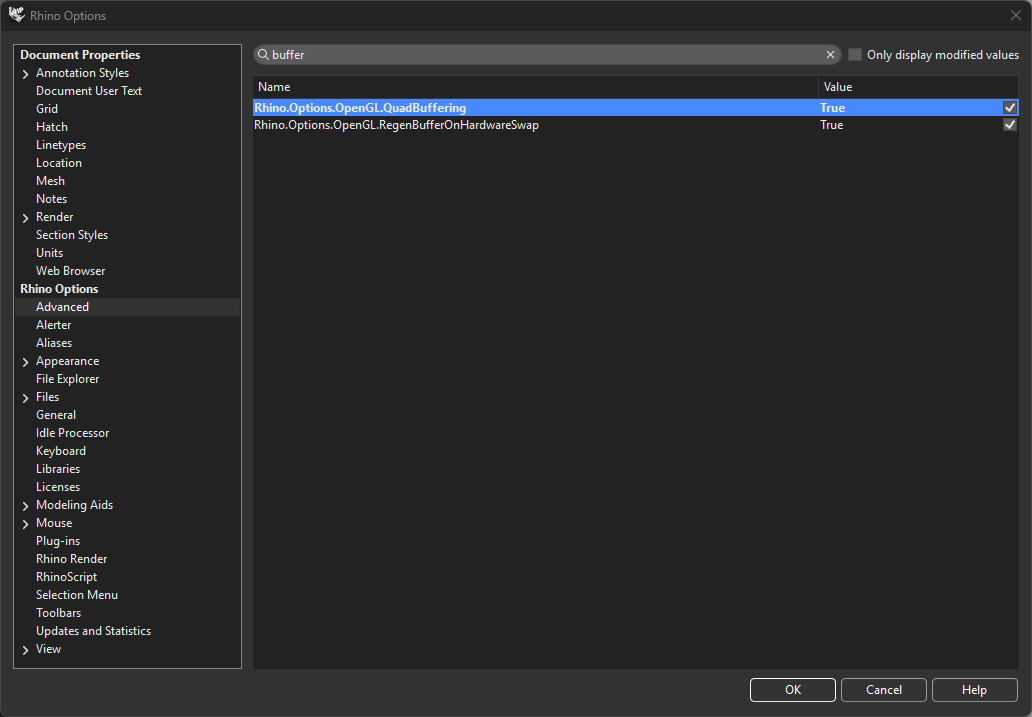
💡 For convenience, type “Buffer” in the search box to quickly reach the option Rhino.Options.OpenGL.QuadBuffering
⚠️ If you find that 3D display is enabled but you see the scene ‘inverted’ (hollow) rather than in relief, go back to the multiple-display settings of the NVIDIA Control Panel. Swap the clone source: select “Clone source 1” instead of 2 for example, or vice versa