
Adding a license to the LAN Zoo
Step 1: Prepare LAN Zoo for your Rhinoceros licenses
⚠️ If you already have a working LAN Zoo installation for your Rhinoceros licenses, you can go straight to step 2.
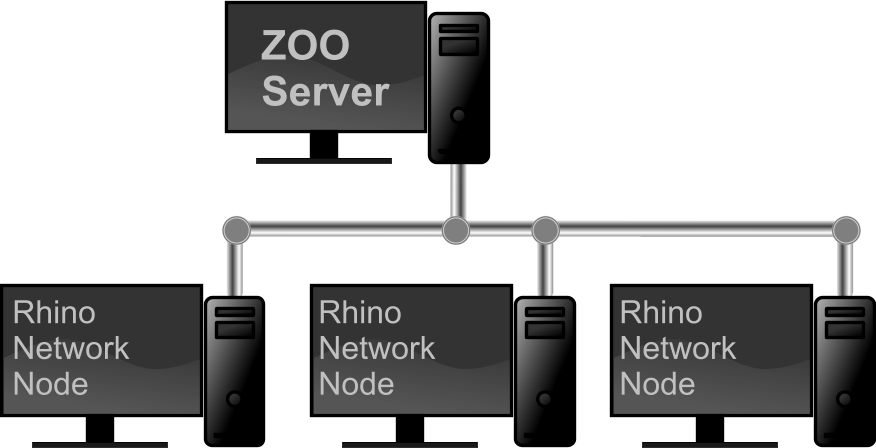
- Choose a Windows computer on your network on which to install the Zoo utility
- Download and install Zoo on this computer
- Check that TCP port 80 is open on your firewall
- Start ZooAdmin and add your Rhinoceros license keys
Step 2: Configure LAN Zoo for your plugins from RhinoTerrainSAS
- Download the archive RTSA_LANZoo
- Copy the archive RTSA_LANZoo to the \Plugins subfolder of your LAN Zoo installation.
- This folder is usually located at: C:\Program Files (x86)\Zoo 8\Plugins
- Unzip the archive RTSA_LANZoo. It contains 2 files:
- RTSA_GetYourID.bat
- RTSA_LANZoo.dll
- Run RTSA_GetYourID.bat (double-click)
- Once started, this executable file will compute the identification code of your computer. As soon as we receive this code, we will use it to generate your license keys.
- This is what will be displayed on screen:
⚠️ You must send us this code so that we can prepare your license keys.
To do so, you can:
• either copy and paste this identifier and email it to us at contact@rhinoterrain.com
• or send us the file LanZoo_RTSA_ID.txt which was created in the same folder, at this same location
- When you receive your license files (with the .lic extension), you will need to copy them to the subfolder \Plugins of your LAN Zoo installation.
- This folder is usually located at: C:\Program Files (x86)\Zoo 8\Plugins
- As with a Rhinoceros license, you will then need to go back to ZooAdmin to add your license(s):
- Click Edit > Add
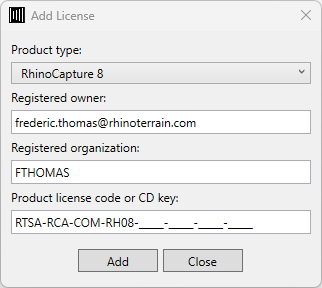
- Select the plugin from the drop-down list
- Enter your name or email address as well as your company name
- Enter the license key you received
- Click “OK” to validate the license