Oxalis_ShowPanelViewLayout
| Command Name | Icon | Menu Path |
|---|---|---|
| Oxalis_ShowPanelViewLayout | Oxalis > Display > Arrange Oxalis views |


Oxalis\Display\Arrange Oxalis views
This command opens a new window to control the layout of the views of the Rhino environment.
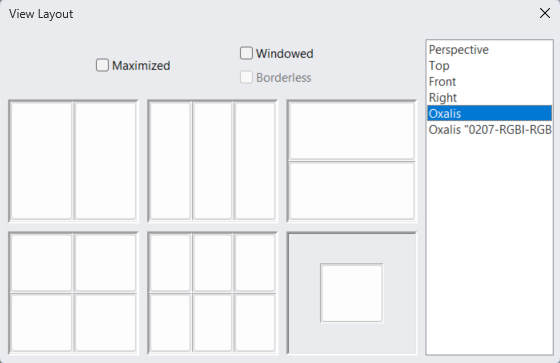
The right part lists all the existing views in the Rhino environment. You can select an item in this list to control its position.
Maximized
The Maximized option lets a view take up the whole space of the Rhino environment : it becomes the only visible view. Unchecking this option returns the view to its initial position.
Windowed
The Windowed option makes a view floating: it opens in a separate window that can be moved anywhere, including to another screen. Unchecking this option docks the view back into the Rhino environment.
Borderless
The Borderless option, available only on floating views, hides the Windows interface of the window, leaving only the view. This includes the borders, the title bar and the close button.
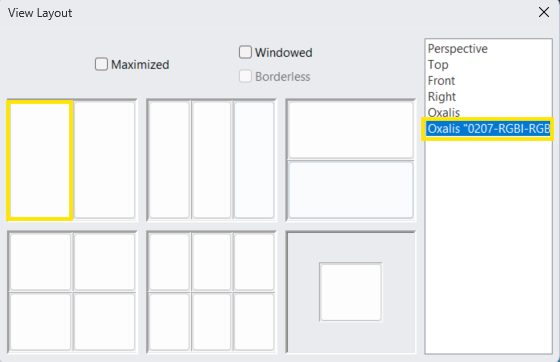
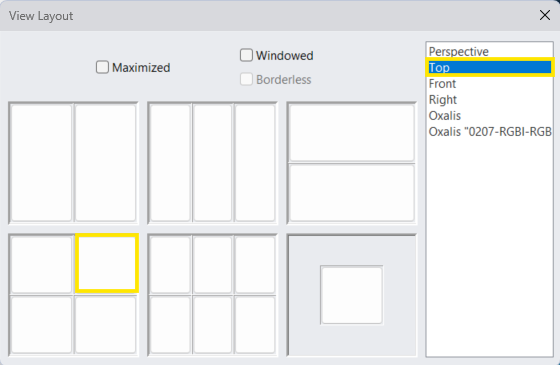
The six rectangles below, and the various buttons inside them, define positions that a view can take relative to the view environment.
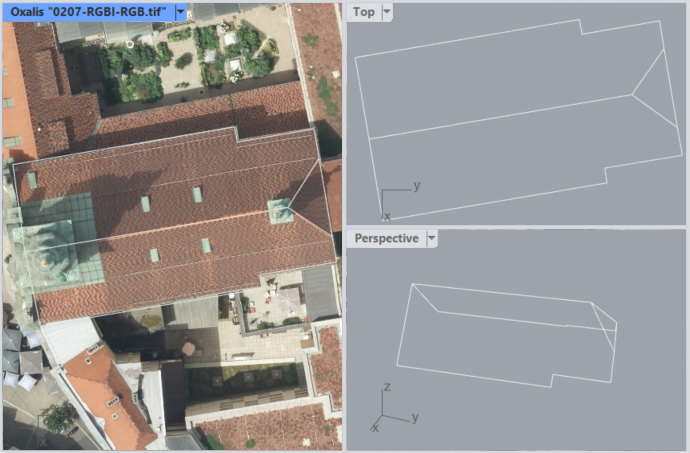
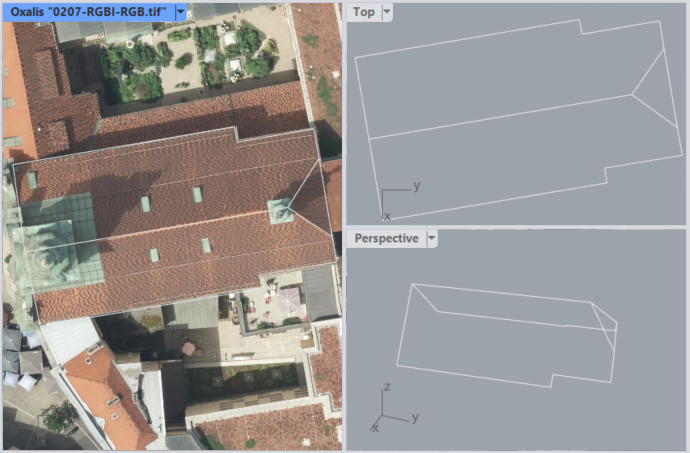
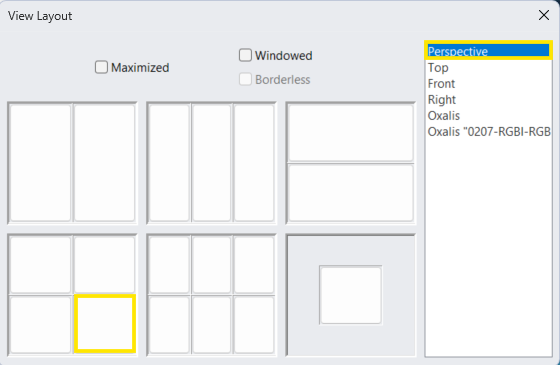
For example, to obtain the layout above, perform the following actions :
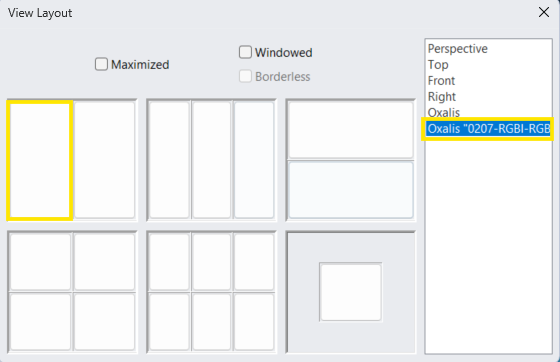
Choose the ‘Oxalis "0207-RGBI-RGB.tif" view, then click the left button of the top-left rectangle. |
|
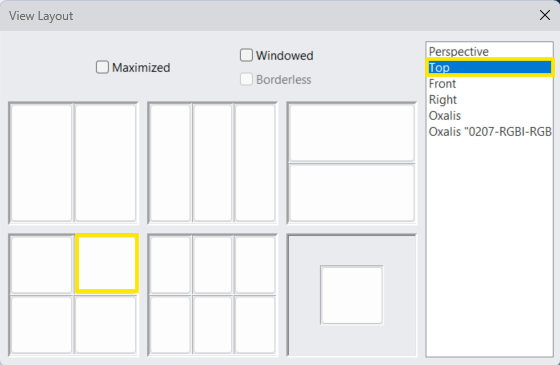
Choose the ‘Top’ view, then click the button in the top-right corner of the bottom-left rectangle. |
|
Choose the ‘Perspective’ view, then click the button in the bottom-right corner of the bottom-left rectangle. |
|