
Oxalis_ConfigureCursor3d
| Command Name | Icon | Menu Path |
|---|---|---|
| Oxalis_ConfigureCursor3d | Oxalis > 3D Cursor > Configure |

…The Oxalis_ConfigureCursor3d command configures, from the command line, the 3D cursor of rhinoCapture STEREO, as regards both its appearance and its behavior.

The 3D cursor can also be configured more simply from the “Cursor3d” panel, using the user interface provided for this purpose. To display this panel, refer to the command Oxalis_ShowPanelCursor3d.
Once the command is started, its options are:
Cursor3d (Reset CoordinateSystem=CameraPlane_Depth Snap=2D MoveWithView=No FreeZone=[L=20%,R=20%,T=20%,B=20%] ]CursorAspect=Cross3d Diameter=1 InnerDiameter=0.01 Done)
Reset
Resets the position of the 3D cursor in the current view, both in the model (‘Model’) and in the view (‘View’). Resetting the position of the 3D cursor means placing it back at the center of the current view.
• The position in the view corresponds to the X and Y coordinates of the cursor in the view (in pixels, with the top left corner of the view as origin) and a depth (‘Depth’) representing the distance between the cursor and the camera (in meters).
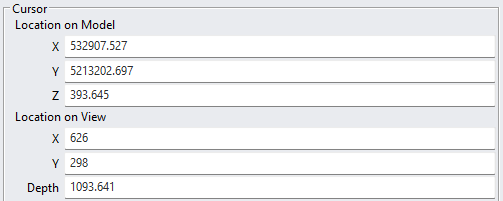
Cursor positions in the ‘World’ coordinate system and in the ‘View’
as displayed in the ‘Cursor3d’ panel
CoordinateSystem
Controls the movement of the 3D cursor.
The possible values of the CoordinateSystem option are:
Means that when the 3D cursor moves in the X or Y direction, it moves along the X and Y axes of the camera. Simply put, X follows the left-right axis of the screen, while Y follows the up-down axis of the screen. When the cursor moves in the Z direction, it moves along the Z axis of the camera. Simply put, this means that the position on screen does not change and the cursor moves closer to or farther from the screen.
| User interface vs Command In the Cursor3d panel, the ‘Movement XY=View’ option corresponds to the ‘CameraPlane_Depth’ mode of the ‘CoordinateSystem’ option
|


- Ground_Depth
Means that when the 3D cursor moves in the X or Y direction, it moves on the XY plane of the ‘World’ coordinate system.
When the cursor moves in the Z direction, it moves along the Z axis of the camera. Simply put, this means that the cursor moves closer to or farther from the screen.
In the Cursor3d panel, the combination of the options ‘Movement XY=Model’ and ‘Z=View’ corresponds to the ‘Ground_Depth’ mode of the ‘CoordinateSystem’ option

- Ground_Altitude
Means that when the 3D cursor moves in the X or Y direction, it moves on the XY plane of the ‘World’ coordinate system.
When the cursor moves in the Z direction, it moves along the Z axis of the ‘World’ coordinate system. Simply put, this means that its elevation changes.
In the Cursor3d panel, the combination of the options ‘Movement XY=Model’ and ‘Z=Model’ corresponds to the ‘Ground_Altitude’ mode of the ‘CoordinateSystem’ option

Snap
The Snap parameter controls how the 3D cursor snaps to objects in the scene.
The possible values of the Snap option are:
The cursor snaps to the nearest object located in front of or behind it, that is, at a similar screen coordinate. | ||
The cursor snaps to the nearest object located within a sphere whose diameter equals its size (see the parameter Diameter). | ||
If you select the value 2D, the behavior of the 3D cursor will depend on the value of the parameter CoordinateSystem.
| User interface vs Command In the Cursor3d panel, having no box selected corresponds to the ‘Default’ mode. The other options map directly
|


MoveWithView
Makes the stereo view slide with the 3D cursor. When the option is on, the stereo pair moves under the cursor as it advances, as if a pan were permanently in progress: the cursor stays in the part of the view defined by FreeZone, and the image comes to it. The option is off by default (No).
The possible values of the MoveWithView option are:
- Yes : The view follows the cursor according to the margins defined by FreeZone.
- No : The view is fixed; the cursor moves freely up to the edges of the view, and it is up to the user to move the view (pan, zoom) to continue beyond them. This is the behavior of previous versions.
FreeZone
Complements MoveWithView by defining, inside the view, the area in which the cursor moves without dragging the view. It is defined by four margins, expressed as a percentage of the width or height of the view: L (left), R (right), T (top) and B (bottom). As long as the cursor stays in the central area thus delimited, the view does not move; as soon as it reaches a margin, the view slides to bring it back into the area.
By default, the four margins are 20 %.
Some typical settings:
[L=0%,R=0%,T=0%,B=0%] | No margins: the view slides only when the cursor touches the edges. Practically equivalent to MoveWithView=No, except that the cursor never leaves the view. |
[L=20%,R=20%,T=20%,B=20%] (default) | The cursor moves freely in the central 60% of the view; the view slides when it approaches the edges. A good compromise for everyday capture: the image stays steady during fine pointing and follows the operator during moves. |
[L=50%,R=50%,T=50%,B=50%] | The free zone is reduced to a point: |
• With the standard mouse, the view follows the cursor only in TwinMouse mode :
• When the pointing device is the standard mouse (Mouse), the MoveWithView option only takes effect in TwinMouse mode. In plain Mouse mode the view does not slide: otherwise, the mouse could never leave the stereo view, since the view would move under the cursor instead of letting it reach the edge.
CursorAspect
Sets the appearance of the 3D cursor.
The possible values of the CursorAspect option are:
The cursor is just a single point. | ||
The cursor is a 2D cross showing, depending on the view, 2 of the axes X (in red), Y (in green) or Z (in blue). |
| |
The cursor is a 3D cross showing the axes X (in red), Y (in green) and Z (in blue). |
| |
The cursor is a circle, drawn on the camera plane if CoordinateSystem=CameraPlane, or on the world plane if CoordinateSystem=Ground or projected onto the snapped object when applicable. |
| |
The cursor is a sphere. |
| |
The cursor is a cube. |
| |
The cursor is an octahedron whose diagonals follow the X, Y and Z axes. |
| |
The cursor is the one defined by the plugin rhinoCapture |
| |
| The ‘RhinoCapture’ appearance is only available if you use Oxalis together with rhinoCapture, that is, in the configuration rhinoCapture |
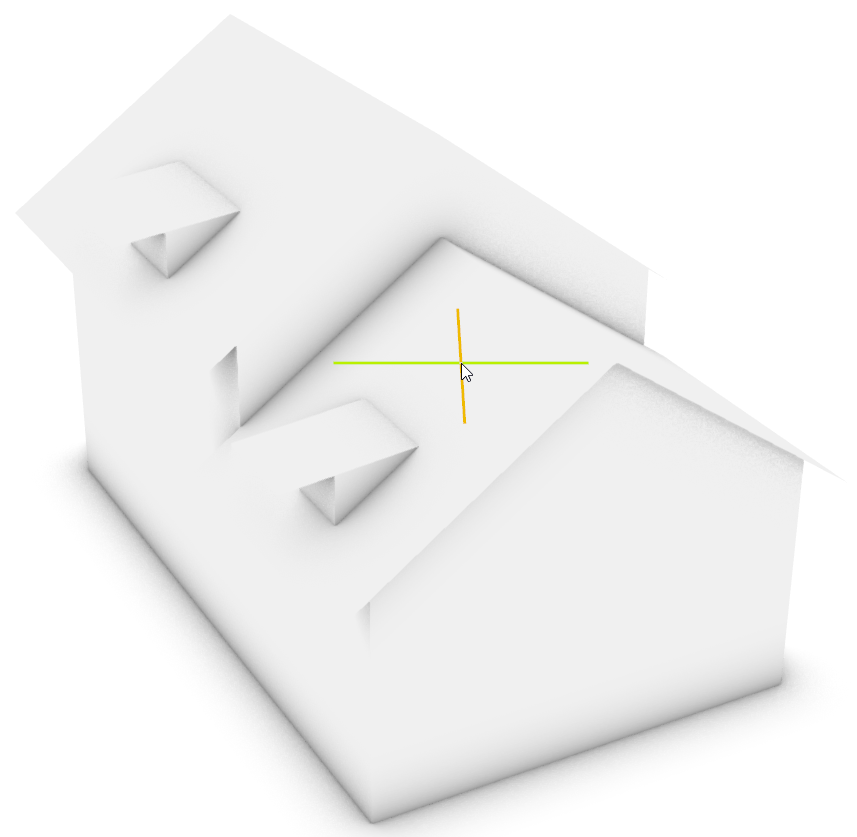
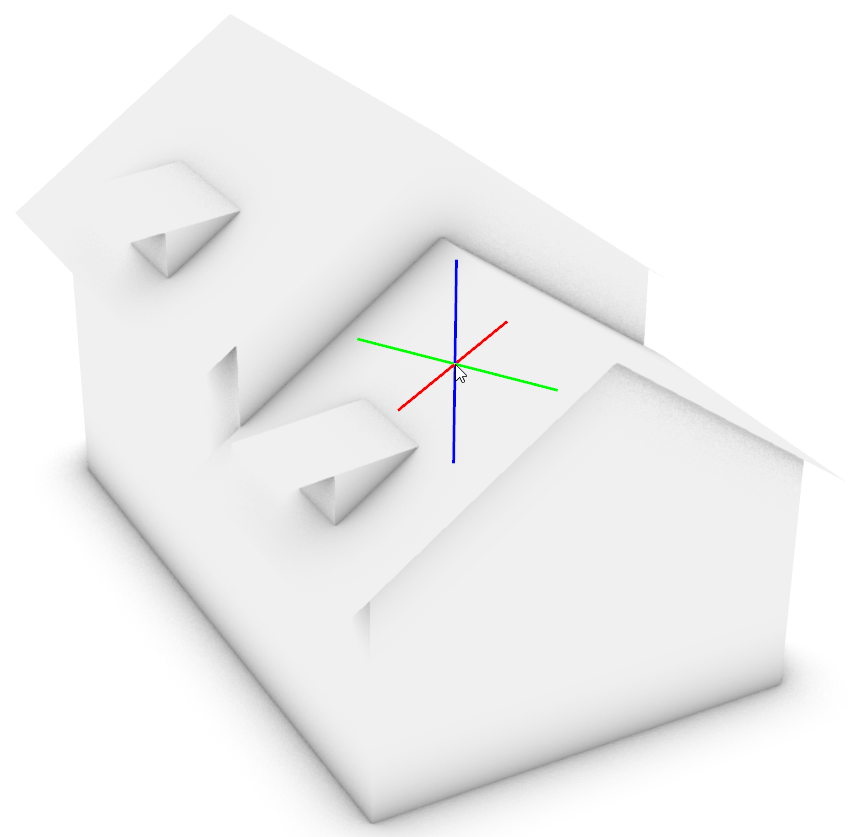
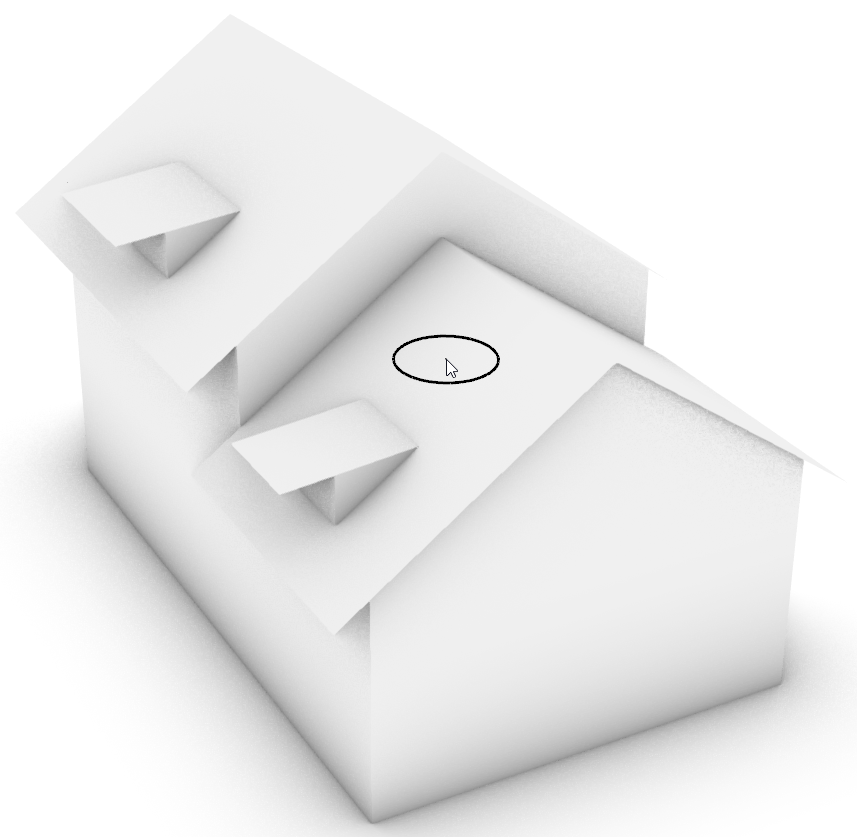
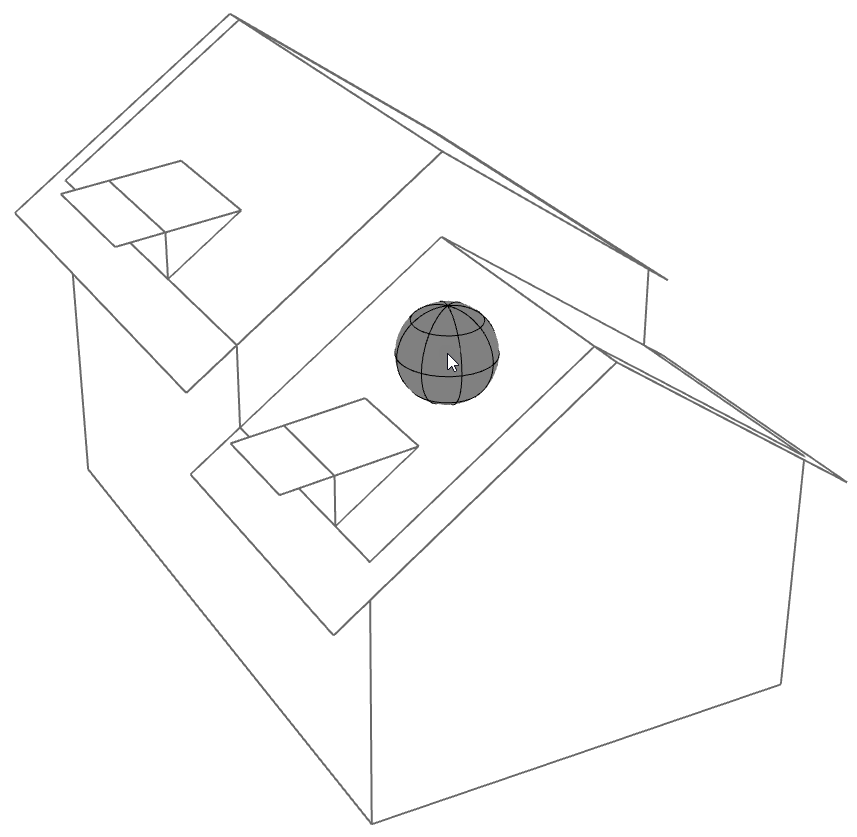
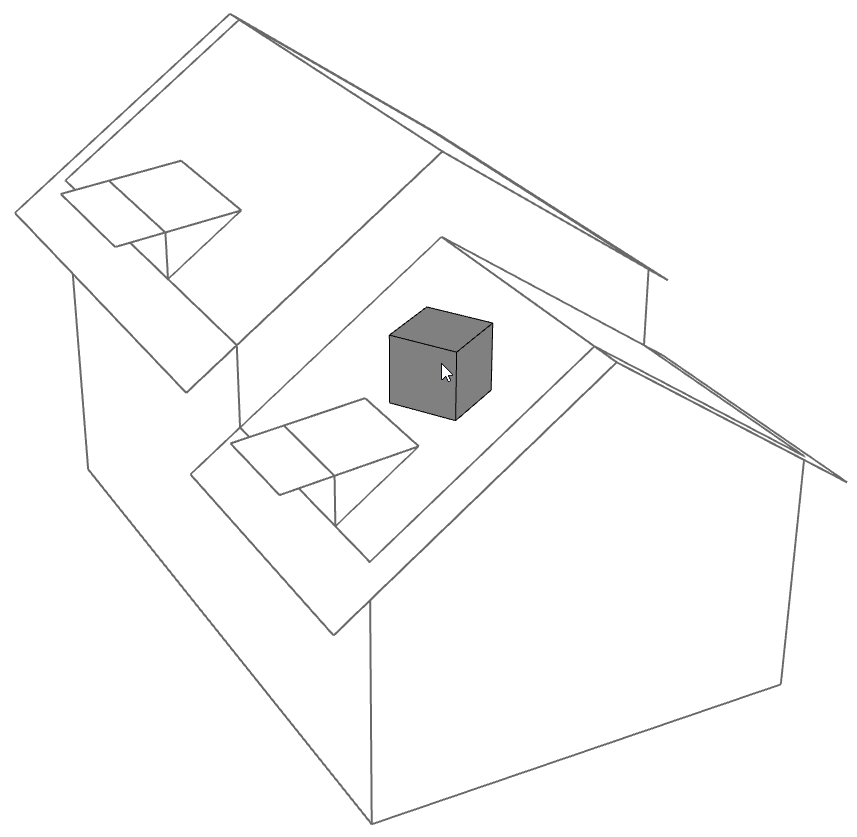
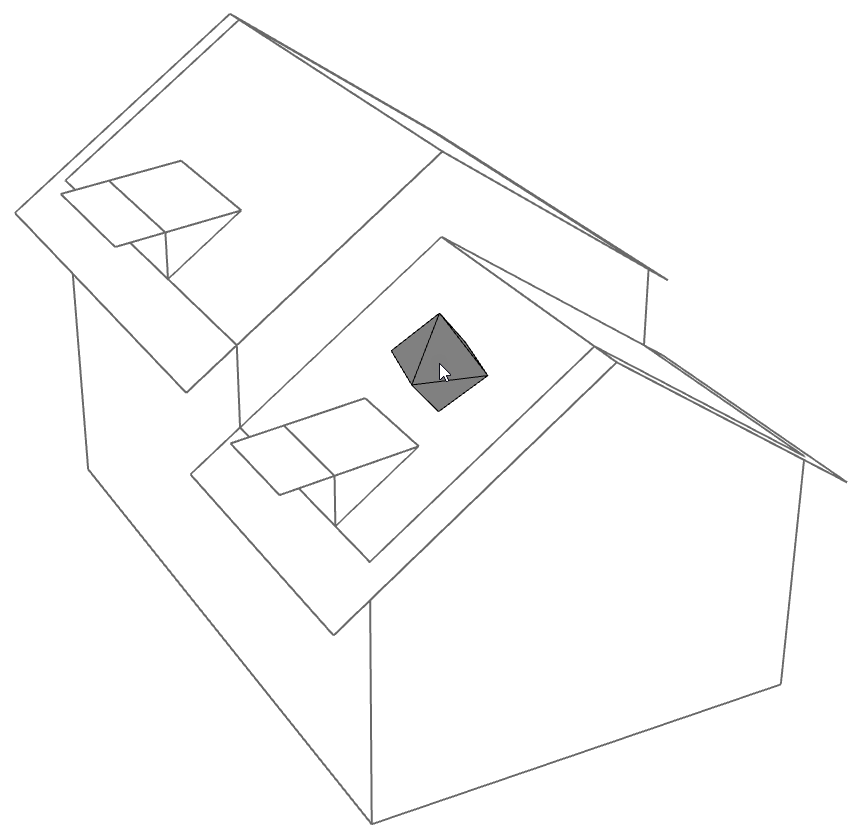
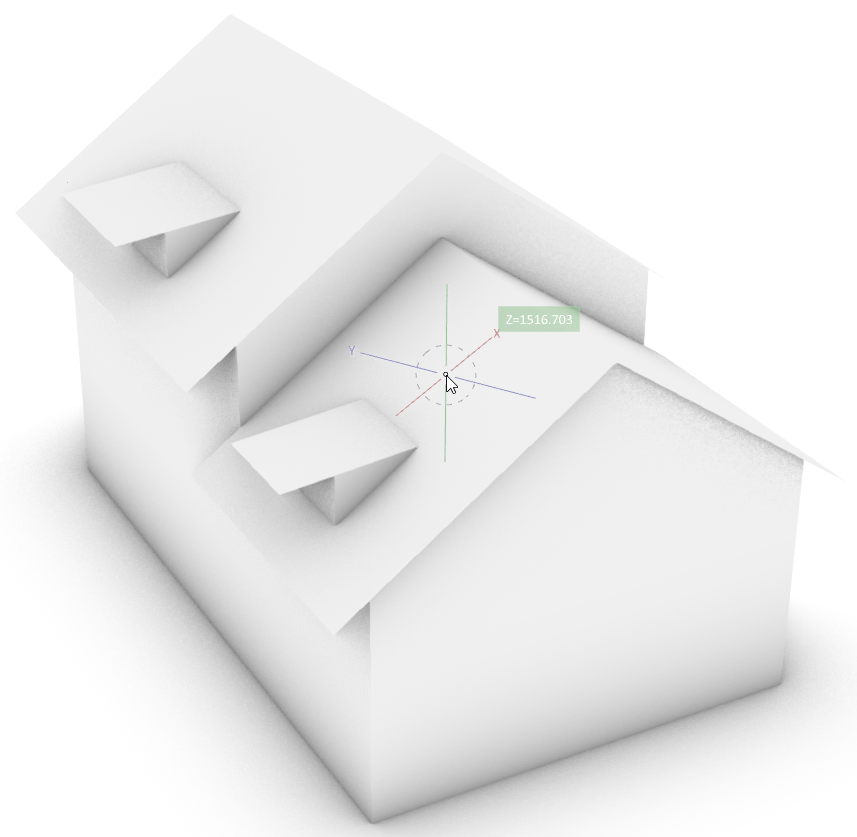

Diameter
The Diameter parameter sets the main dimension of a cursor. Depending on the chosen appearance, Cross2d, Cross3d, Circle, Cube... this dimension is that of the 2 arms of a cross (on the same axis), or the diameter of the circle, or the base of the cube, etc.
This parameter also defines the snap tolerance of the cursor to objects.
STEREOInnerDiameter
The InnerDiameter parameter sets the gap between the arms of the cursor for the Cross2d and Cross3d appearances, or the size of the center point for the Circle, Sphere, Cube and Diamond
STEREODone
Clicking Done ends the command and applies the choices made.
